
IP Webcam Pro
Thyoni TechVideo Players & Editors
4.2286.00 Reviews
- Version
- Varies With Device
- Installs
- 100.00K
- Age Rating
- Everyone
Screenshots
Our Review of IP Webcam Pro
 Analysis by Appyee
I like the idea behind IP Webcam Pro: instead of buying a separate camera for every small monitoring job, you can try using a phone you already own. That can be useful for checking on a room, keeping an eye on a pet, or experimenting with a live camera feed. The important distinction is that this is a phone-based setup, not a purpose-built security system; your results depend on where you place the phone, how you power it, and the quality of your network.
What using an old phone really involves
A spare phone can make a convenient fixed camera, but it still needs a sensible place to sit. Before leaving it running, I would position it so the lens has a clear view, the device cannot easily be knocked over, and the screen or other lights do not draw unwanted attention. A stable stand and a nearby power source can matter more in day-to-day use than choosing the highest video setting.
There is also a practical trade-off: the phone is doing more than taking a quick snapshot. Streaming and recording can keep its camera and network active, so I would not rely on a nearly empty battery or leave a device somewhere it might overheat or be disturbed. For a short check-in, that may be easy to manage. For regular monitoring, plan the placement and power arrangement first, and test the setup before trusting it to cover a room.
A small workflow that makes monitoring more useful
For an everyday example, imagine wanting to see whether a delivery has been left inside a porch or whether a pet has settled after you leave. I would first test the view from the receiving device while standing where I expect to check it later. Then I would adjust the angle, confirm that the connection works from the intended location, and try the alert or recording behavior while someone moves through the frame. That quick rehearsal can reveal blind spots and unnecessary notifications before they become annoying.
Motion detection is most helpful when the camera sees a fairly predictable area. A view aimed at a busy hallway may trigger repeatedly as people pass, while a quieter corner can make alerts easier to interpret. If the app lets you tune detection behavior, start conservatively and test it under ordinary lighting and movement rather than assuming one setting suits every room. The goal is not simply to receive more alerts; it is to receive alerts that tell you something you actually need to know.
For a temporary setup, I would also decide in advance what I want to do with the footage. Live viewing may be enough when I only need a quick look, while recording is more useful if I need to review an event later. Cloud storage can reduce the pressure on the phone’s local space, but it also makes a dependable connection and a clear understanding of where recordings are kept more important. I would test a short recording and playback before depending on that workflow.
Choosing the right connection and image settings
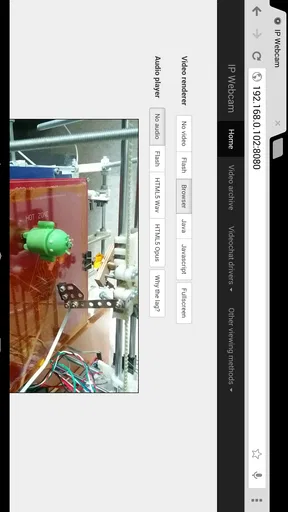
The app’s range of video and connection settings gives room to adapt, but more demanding settings are not automatically better. Higher image detail may help when you need to distinguish objects in the frame, yet it can also make a weak connection less forgiving. If a stream stutters, I would lower the video demands and check the phone’s position relative to the router before blaming the camera itself. A steady, usable view is more valuable than a sharper feed that repeatedly drops.
Wi-Fi is the straightforward choice when the phone and viewer are on a reliable local network. Mobile data can be useful when you need access away from that network, but it brings a different set of practical concerns: connection quality can vary, and streaming may use data. I would test remote access in the places I expect to use it and avoid assuming that a successful home test guarantees a smooth feed everywhere.
Audio deserves its own test. Two-way communication may be handy for speaking to a pet or someone near the phone, but the microphone and speaker are still part of the phone, so placement affects what you hear and how clearly you can be heard. Before relying on it, check for echo, background noise, and whether your voice reaches the intended area. For discreet, continuous monitoring, audio may not be necessary at all; turning attention toward the video alone can make the setup simpler.
Getting Started with IP Webcam Pro
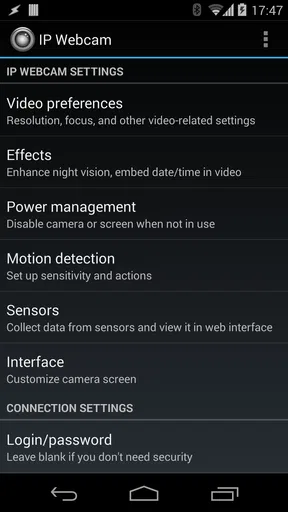
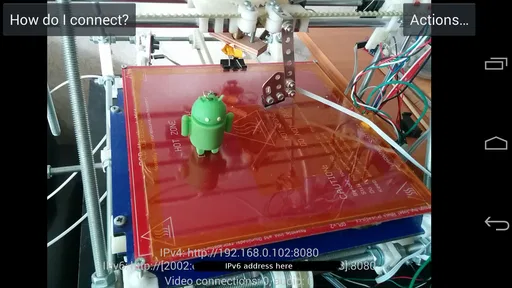
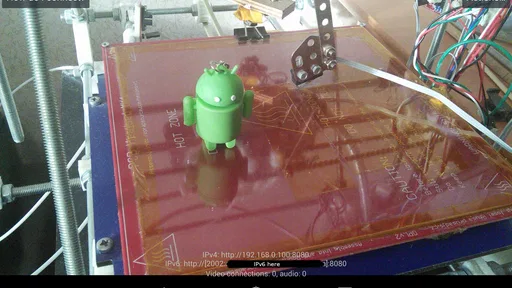
When I first downloaded IP Webcam Pro, I was intrigued by how straightforward the setup was. Just fire up the app, and you’re guided through a simple process to get your phone’s camera streaming live video. It’s almost like magic. The app offers a variety of resolution settings, so whether you’re streaming for fun or keeping an eye on something important, you’re covered.
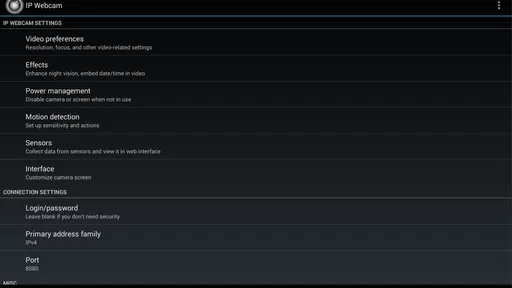
One of the first things that caught my attention was the sheer number of options. You can tweak everything from video quality to the type of connection you want to use. It supports both Wi-Fi and mobile networks, which is perfect if you want to monitor something while you’re out and about. Just make sure you have a stable connection to avoid any hiccups.
Features That Stand Out
Now, let’s talk about the cool stuff. IP Webcam Pro isn’t just about live streaming. It packs some really neat features that can turn your phone into a multi-purpose tool. For instance, it has motion detection, which is a game-changer if you’re using it for security. You can set it up to send alerts or even start recording automatically when it detects movement.
And if you’re into audio, you’ll love the two-way audio feature. Imagine being able to talk through your phone while watching the live stream—it’s like being in two places at once. I found this super handy when I was using it to keep an eye on my pets while I was at work. They seem to react to my voice, which is both adorable and practical.
Another highlight is the ability to record directly to cloud storage. This means you don’t have to worry about maxing out your phone’s storage when you’re away. Plus, it adds an extra layer of security since your recordings are saved off-site. It’s a smart move, especially if you’re using the app for serious monitoring tasks.
Usability and Interface
Let’s be real; no one wants to spend hours figuring out how to use an app. Thankfully, the user interface of IP Webcam Pro is intuitive and user-friendly. The app’s layout is clean, and everything is clearly labeled, making it easy to find what you need. Even if you’re not tech-savvy, you’ll get the hang of it in no time.
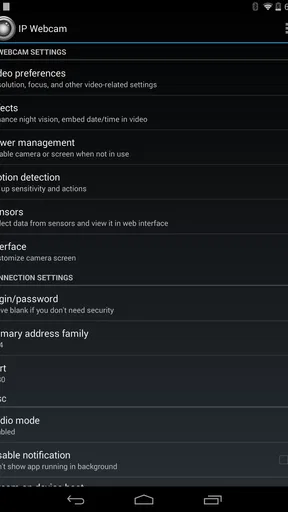
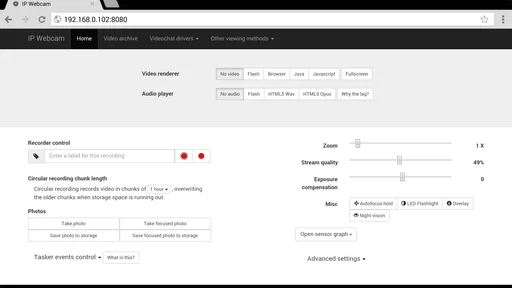
While navigating through the settings, I noticed that the app offers a lot of customization. You can tailor the experience to fit your specific needs, whether you want to adjust the frame rate, resolution, or even add overlays like timestamps. It’s all about giving you control over how you use your device.
Performance and Reliability
In terms of performance, I was pleasantly surprised. The live stream was smooth, and there were no noticeable lags, even when streaming in higher resolutions. Of course, this depends on your network quality, but the app seems to optimize well for different conditions.
I also ran some tests with the motion detection feature, and it worked flawlessly. Notifications were instant, and the app didn’t miss a beat. This reliability makes it a solid choice for anyone looking to use it as a security solution.
Where it fits among camera options
Compared with a basic video-player or editing app, this one is built around turning a phone into a camera feed rather than polishing clips after the fact. Compared with a dedicated wireless camera, its biggest appeal is reuse: you may already have the phone, and you can move it to a different room when your needs change. The trade-off is that a phone does not automatically provide the permanence, placement flexibility, or purpose-built setup of a camera designed to stay installed.
I would choose this approach for temporary monitoring, a home experiment, or a spare-device project where adjusting settings is part of the appeal. I would choose a dedicated camera instead if I wanted a fixed installation that other household members could use without learning a phone-based workflow. And if my main goal were editing footage, rather than watching a live view, a conventional editor would be a more natural fit.
Who should try it—and who may prefer something else
The app makes the most sense for someone comfortable repurposing a phone and checking that the whole setup works before relying on it. It can suit a pet owner who wants occasional live check-ins, a person watching a temporary work area, or someone curious about network cameras without starting with separate hardware. Its customization also gives patient users options to balance image quality and connection stability.
I would hesitate to recommend it as the sole answer for a high-stakes security need. A phone can be moved, unplugged, or left with a poor view, and a network interruption can affect remote viewing. If missed footage would have serious consequences, I would look at equipment and recording arrangements designed for that level of reliance. For casual awareness, though, a carefully tested phone setup can be a practical compromise.
What the app’s age means for new and returning users
IP Webcam Pro is a paid app from Thyoni Tech in the video-player and editing category. It was released on April 5, 2014, and its public profile shows an average rating of 4.2 from around 2.4 thousand ratings, with over 100 thousand installs. The price is $4.99, and its content rating is Everyone. Those details help set expectations: it is an established utility rather than a newly introduced camera service, and prospective users can weigh the upfront cost against the convenience of reusing a phone.
The release date gives useful context, but it is not evidence of a particular recent redesign or feature change. For someone who already uses it, the practical question is whether the current setup still fits their device, network, and routine. I would check the live stream, alerts, and any recording path after changing phones or moving the camera, rather than assuming an old configuration will behave identically in a new environment. Someone new to it should approach the initial session as a test: establish the view, try remote access, and confirm the parts they intend to use.
What I would check before depending on it
For monitoring, reliability is a chain rather than one feature: the phone must keep a useful view, the connection must carry the stream, and alerts or recordings must behave as expected. I would test each link separately. Walk through the camera’s view to see whether motion is detected, then leave and check access from the place where I would normally view it. If recording matters, confirm that a clip can be found and played back instead of treating the start of recording as proof that everything is working.
Privacy is another reason to be deliberate about placement and access. A camera pointed into a shared or private area can capture more than intended, so I would frame only what I need to see and make sure the people affected understand the setup. This is especially important when using a phone as an improvised camera: its familiar appearance can make it easy to forget that it is transmitting a live view.
Final Thoughts
So, would I recommend IP Webcam Pro? Absolutely. Whether you’re looking to enhance your home security or just want a fun way to use your old devices, this app delivers. Its combination of features, ease of use, and reliability makes it a standout option in a crowded market. Plus, the ability to customize and adapt to your needs gives it an edge over other similar apps.
If you’re curious to see what your phone can do beyond the basics, give IP Webcam Pro a try. You might just discover a whole new world of possibilities.
My recommendation after weighing the trade-offs
I would start with a modest, low-risk job rather than making this the only camera protecting something important. Try the phone in the room you care about, tune the view and stream, and see whether its alerts and recordings are genuinely useful in your routine. That gives you a realistic sense of both the app and the limits of the device doing the work.
At $4.99, it is an option for people who value a flexible phone-based camera and are willing to do a little setup. If you want a ready-to-install camera with a dedicated role, or a tool focused on editing rather than streaming, another kind of product will likely suit you better. For a spare phone and a clearly defined monitoring task, though, I find the idea appealing—and the best results come from treating testing and placement as part of the setup, not as afterthoughts.
Verdict
Strengths of IP Webcam Pro
- High-quality video streaming.
- Multiple viewing options available.
- Supports various video formats.
- Motion detection feature included.
- Easy integration with other apps.
Limitations of IP Webcam Pro
- Requires stable internet connection.
- Limited free features available.
- Some features may drain battery.
- Occasional connectivity issues.
- Interface could be more intuitive.
Similar Picks in This Category
View All
Google TV
Google LLC3.9

iTunes
Apple4.7

YouTube
Google LLC3.8

MX Player
Amazon Mobile LLC4.2

CapCut - Video Editor
Bytedance Pte. Ltd.3.5

PLAYit-All in One Video Player
PLAYIT TECHNOLOGY PTE. LTD.4.5
Frequently Asked Questions
What features does IP Webcam Pro offer?
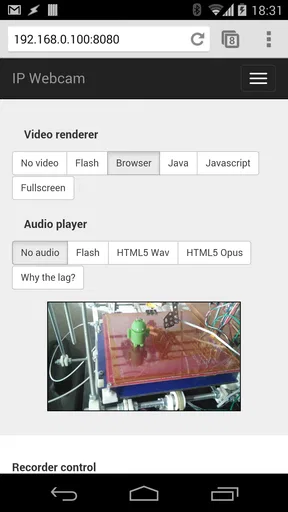
IP Webcam Pro transforms your smartphone into a network camera with multiple viewing options, including VLC player or a web browser. It supports video recording in WebM, MOV, MKV, or MPEG4, and offers motion detection, cloud streaming, and audio support. It's perfect for security and surveillance needs.
Is IP Webcam Pro compatible with all devices?
IP Webcam Pro is compatible with most Android devices running version 4.1 and up. However, it is important to ensure your device has a functional camera and microphone for optimal use. Compatibility with iOS is not supported, so iPhone users will need to seek alternative apps.
Does IP Webcam Pro require an internet connection?
While IP Webcam Pro does not necessarily require an internet connection for local network streaming, an active internet connection is needed for cloud streaming and accessing the camera feed remotely. Ensure your home Wi-Fi network is stable for consistent performance when accessing remotely.
How secure is the video feed on IP Webcam Pro?
IP Webcam Pro offers several security measures, including password protection and encryption for remote access. It is essential to configure these settings properly to ensure unauthorized users cannot access your feed. Regularly updating the app and your device's security settings is also recommended.
Can I use IP Webcam Pro for professional surveillance?
IP Webcam Pro is suitable for both personal and professional surveillance. Its motion detection and recording features make it viable for use in small businesses. However, for extensive surveillance systems, it might lack some advanced features available in dedicated professional equipment.
